
Assign company code to company-OX16
spro-sap reference img-sap customizing implementation guide-enterprise structure-assignment-financial accounting-assign company code to company-OX16
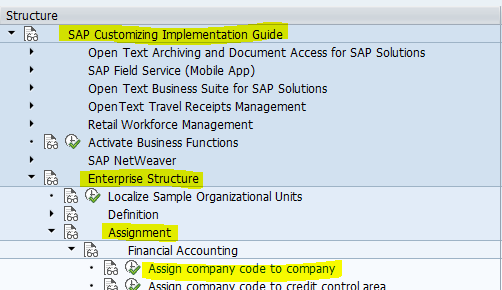
Click the Assign Company Code to Company.
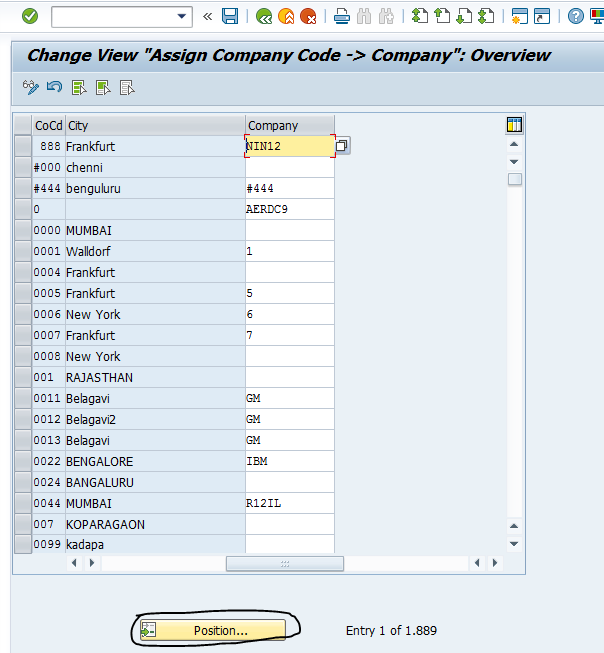
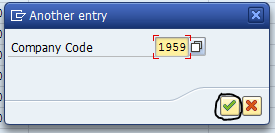
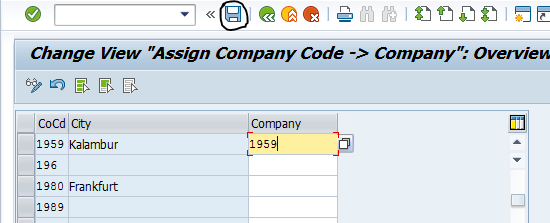
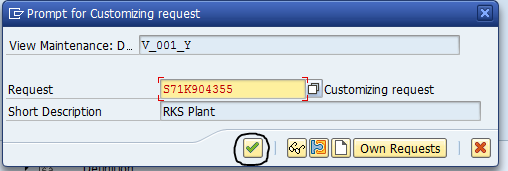
Now click the Continue button.
Now the company code 1959 is assigned to company 1959.
Assign Company to Credit Control Area – OB38
By assign company code to credit control area, it sets the limit that how much credit a customer can be granted.
This assignment check automatically a credit limit of the customers and stop the further orders if already the credit limit is exceeded.
We can assign several company codes to a single credit control area.
spro-sap reference img-sap customizing implementation guide-enterprise structure-assignment-financial accounting-assign company code to credit control area-OB38
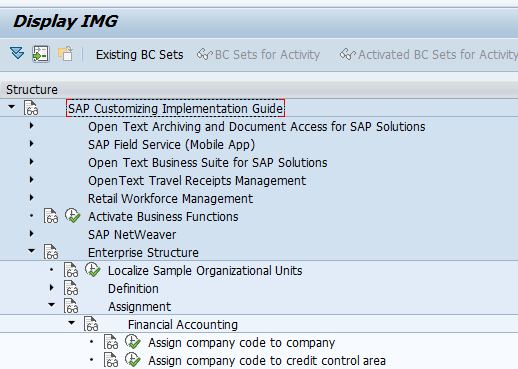
Click the Assign company code to credit control area.
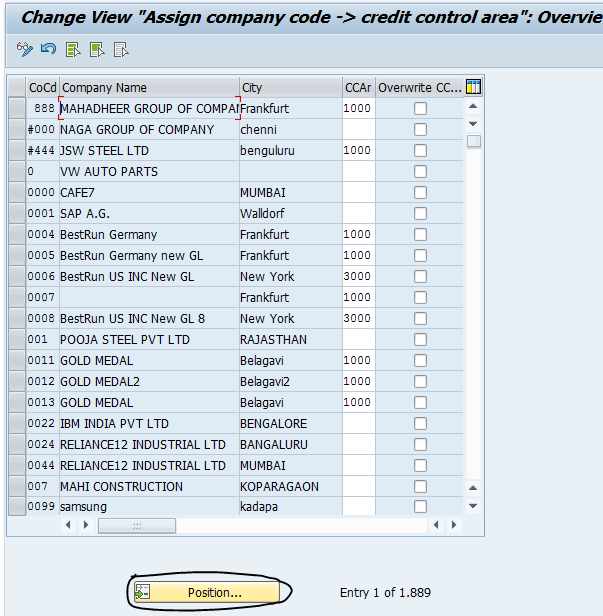
Click the Position for selecting your company code already defined here.
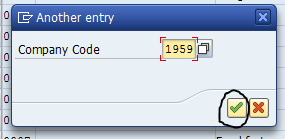
Give your Company Code and click the Continue.
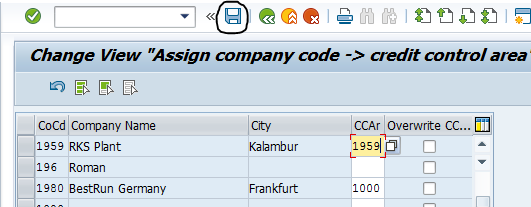
Give your Credit Control Area and press Enter and then click the Save button.
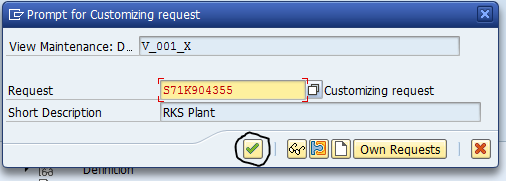
Now click the Continue button.
Now the company code 1959 is assigned to credit control area 1959.
Assign Plant to Company Code – OX18
All the materials are stored in the plant. Whenever a material comes in or goes out of a plant it has a value in money. This assignment updated the balance sheet and profit & loss account during the stock level changes.
In SAP, the valuation level is set at the plant level. To figure out how much your inventory is worth, the system needs to know which company code owns that inventory.
By linking a plant to it, all local manufacturing or storage activities are reported accurately for tax purposes under the particular legal entity.
If you want to move the stock transfer between the plants in the same company and it this assignment ensure that no sale happens and just an internal stock movement.
spro-sap reference img-sap customizing implementation guide-enterprise structure-assignment-logistics general-assign plant to company code-OX18.
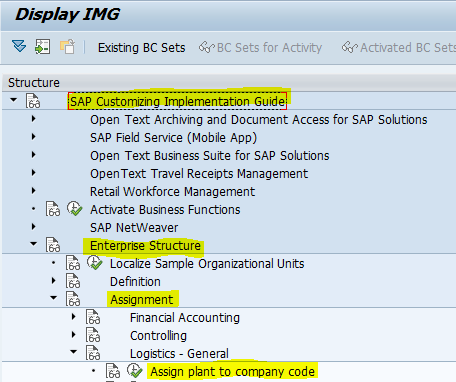
Click the Assign plant to company code.
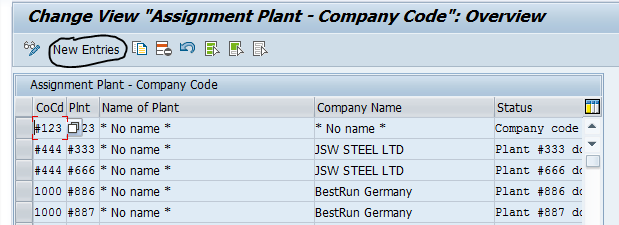
Click the New Entries.
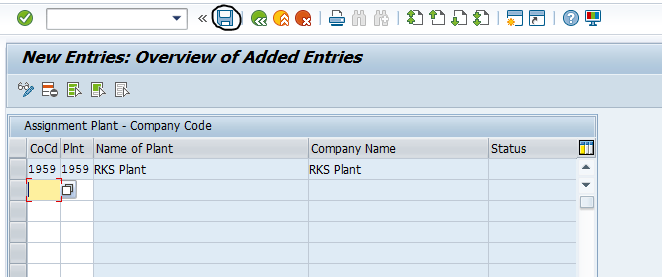
Enter you Company Code, Plant and press Enter it will show the name of your company code and the plant.
Then, click the Save button.
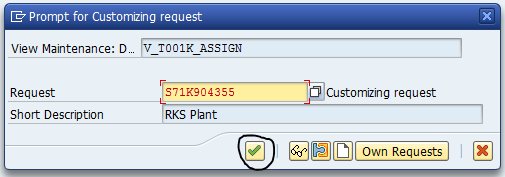
Click the Continue button.
Now the company code 1959 is assigned to the plant 1959.
Assign Plant/Valuation Area- Division-Business Area-OMJ7
In SAP, the main goal of linking a Plant and Division to a Business Area is to allow for automatic Business Area identification during operational tasks. This connection between Logistics and Financial Accounting helps streamline cross-functional reporting.
It removes the need for manual data entry. When a user records a goods movement or invoices a customer, the system automatically generates financial entries for the appropriate Business Area based on the chosen Plant-Division pair. It also supports internal financial reporting. Companies can easily pull Balance Sheets and Profit & Loss statements by specific geographic locations or business lines/product categories.
This setup aids in accurately tracking profitability. Revenue from a particular product line produced or shipped from a specific facility directly corresponds to its financial records.
spro-sap reference img-sap customizing implementation guide-enterprise structure-assignment-logistics general-assign business area to plant/valuation and division.
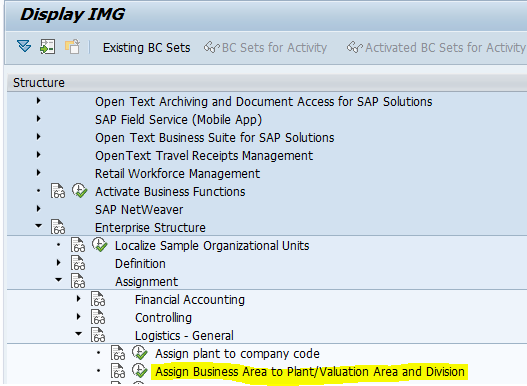
Click the Assign Business area to Plant/ Valuation area and Division.
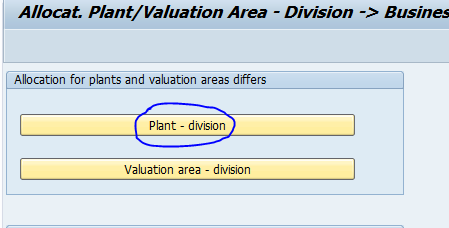
Click the Plant-division button as shown in the image.
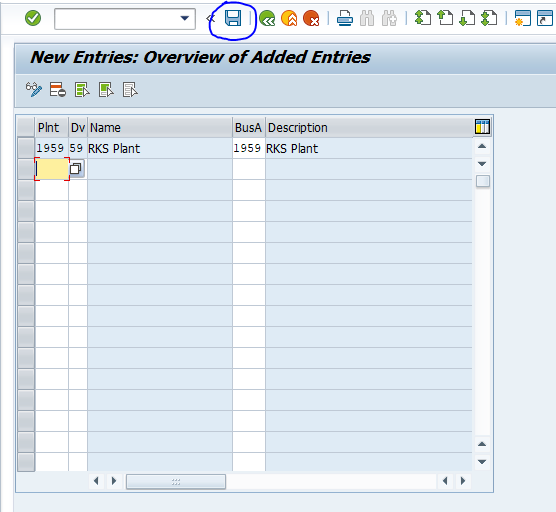
Give our defined Plant , Division , Business Area codes and press Enter and it dispalys the description and then click the Save, and then Back button twice.
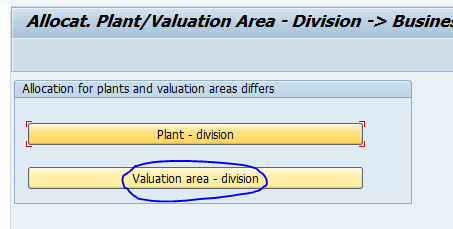
Click the Valuation area-division button.
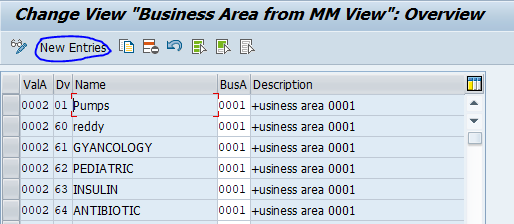
Click the New Entries.
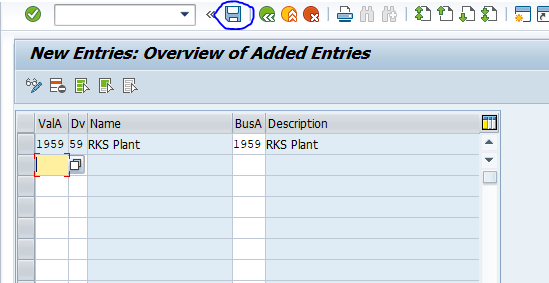
Give our defined Valuation Area , Division , Business Area codes and press Enter and it dispalys the description and then click the Save, and then Back button.
Valuation area is nothing that is same as Plant.
Now the Plant/Valuation area-Division-Business area are all assigned to each other.
“Learn more about SAP, visit the official website“