
Controlling Area – OKKP
Step 1: Basic Data
Transaction code is OKKP
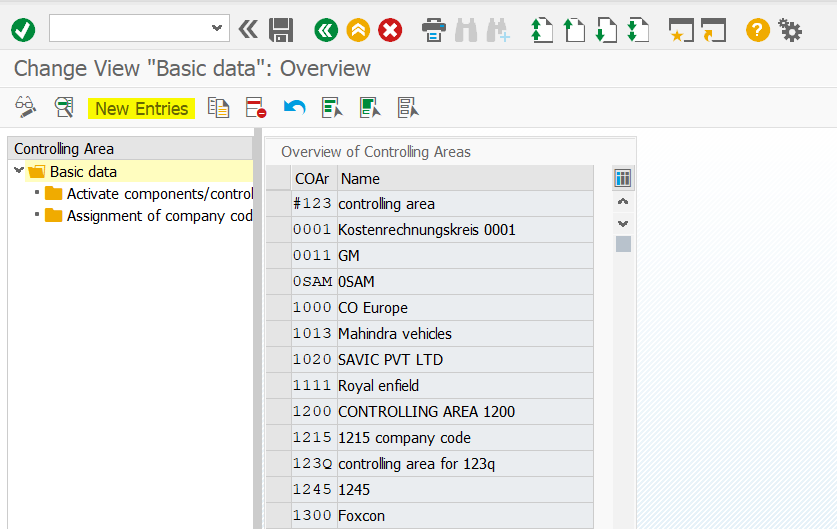
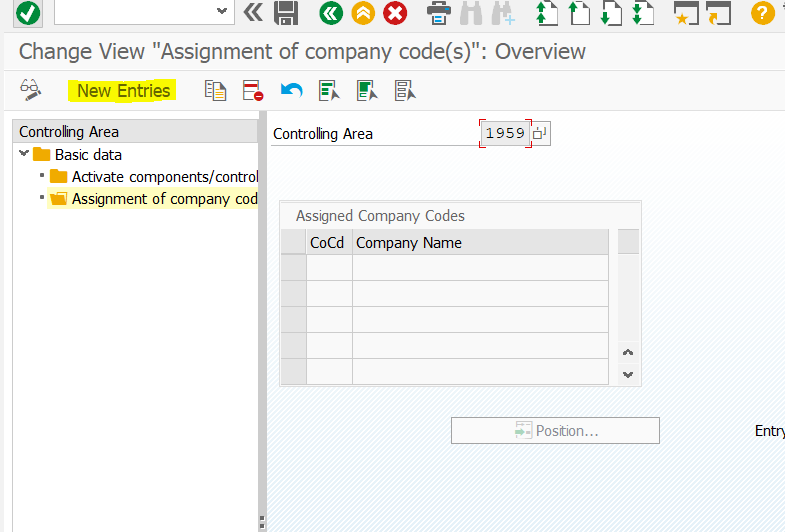
Click the New Entries.
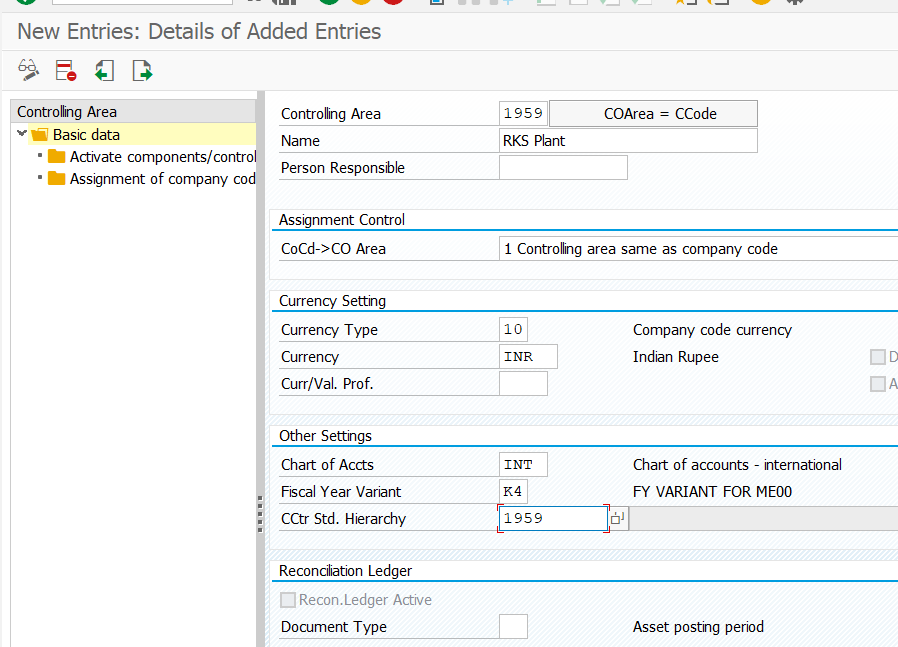
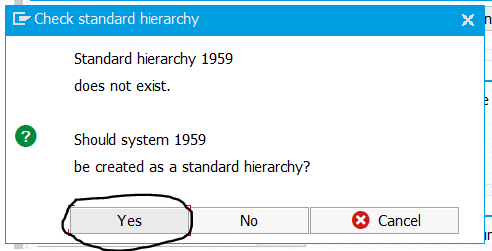
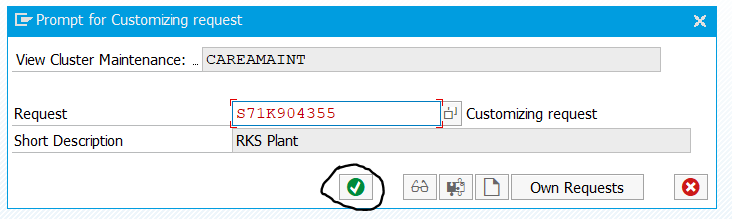
Step 2 : Assignment of company codes
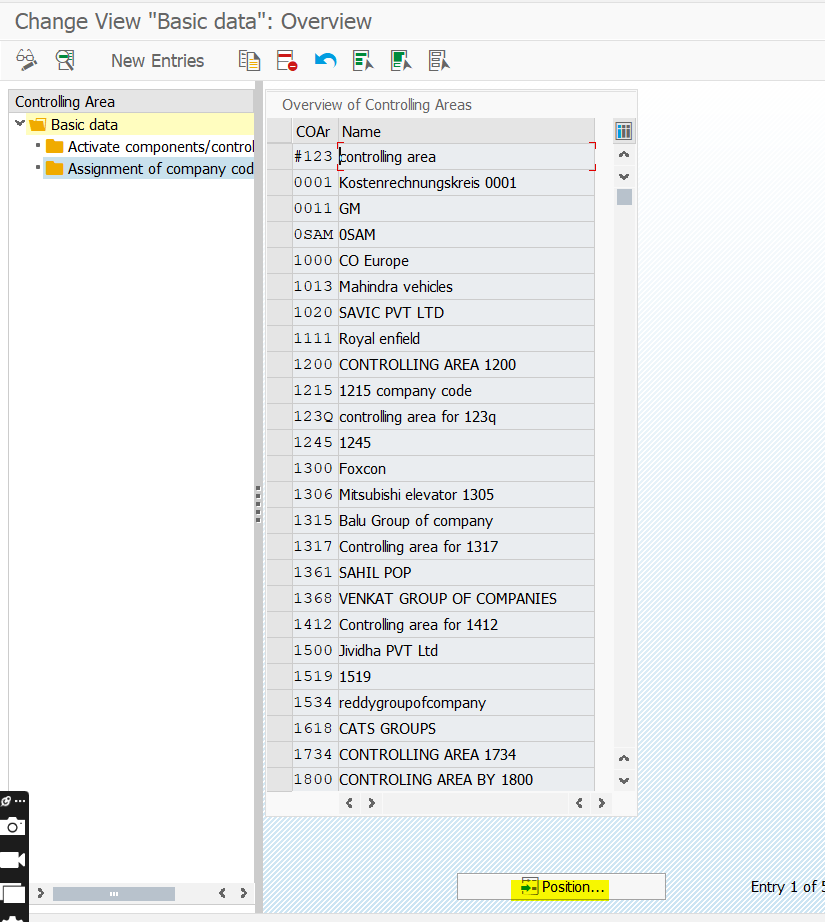
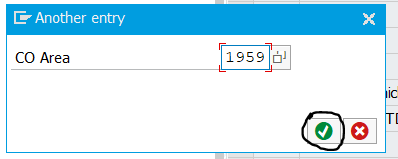
Click the Position to select our CA
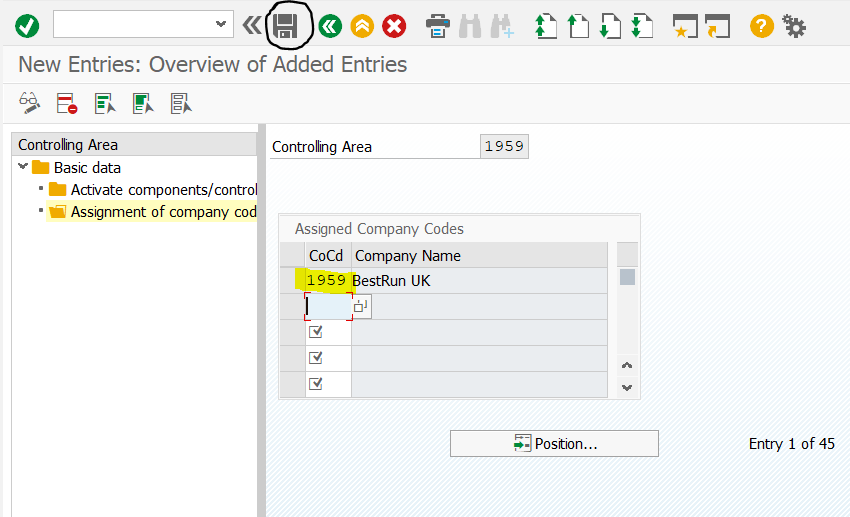
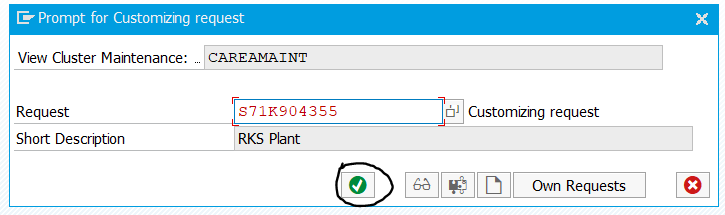
Step 3: Activate the Components/Control Indicators
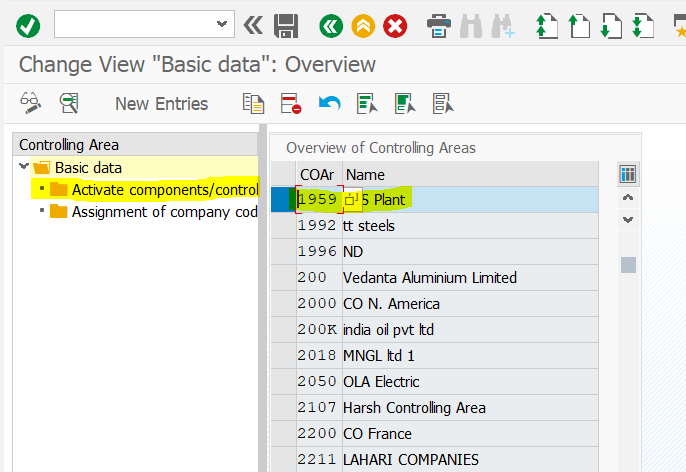
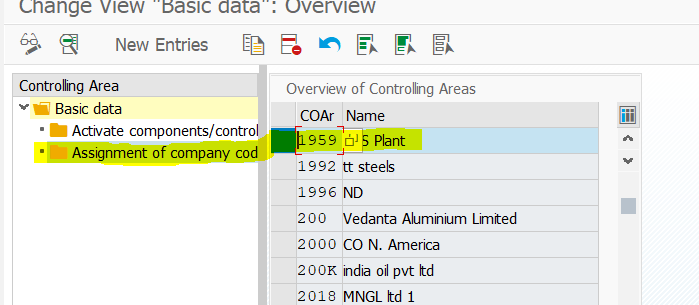
Select our controlling area and double-click the Activate Components as shown in the figure.
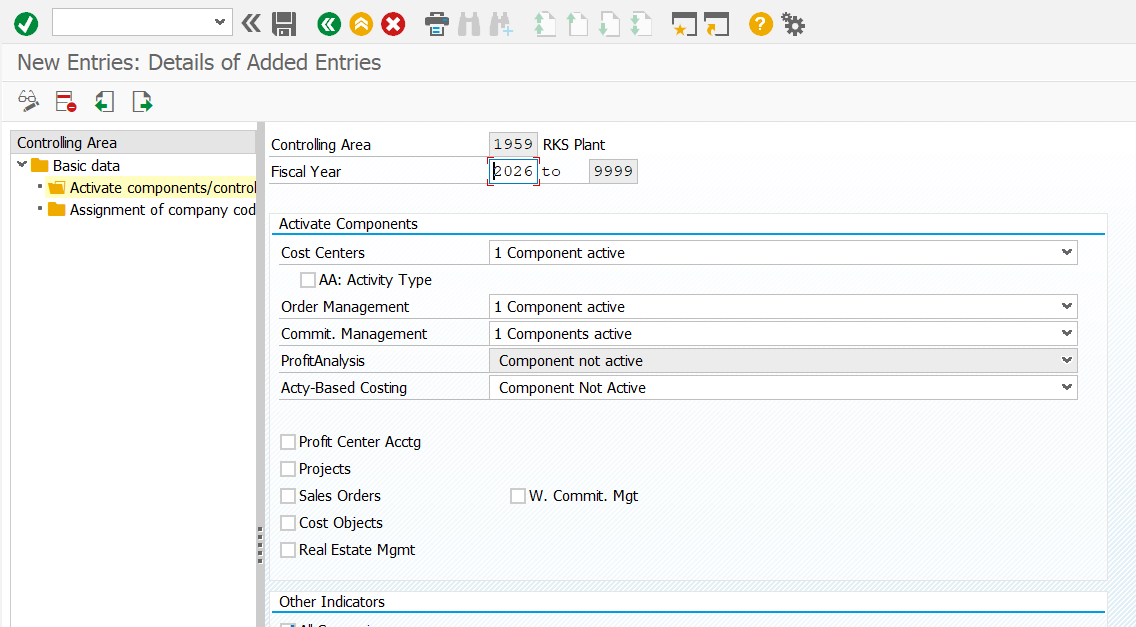
The Controlling Area 1959 – RKS Plant has now been created.
Define Cost Center – KS02
In SAP, a Cost Center functions as an organizational unit within a Controlling Area, signifying a particular location or department where expenses are generated.
It is a part of a company that helps keep track of how much money is being spent. It show different areas, departments, or jobs in the company where different kinds of costs happen.
It is defined as ten-digit alphanumeric code.
spro-sap reference img-sap customizing implementation guide-enterprise structure-definition-controlling-create cost center-KS02
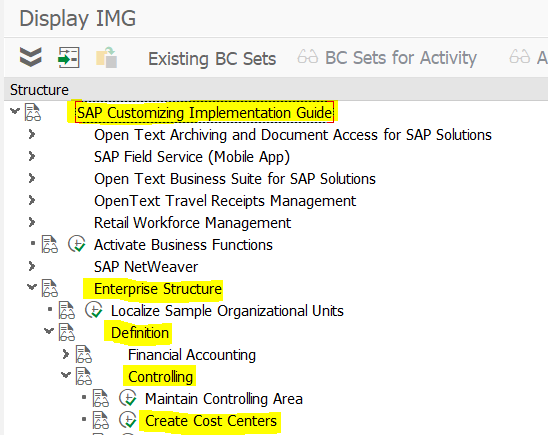
Select the highlighted as shown in the image to create.
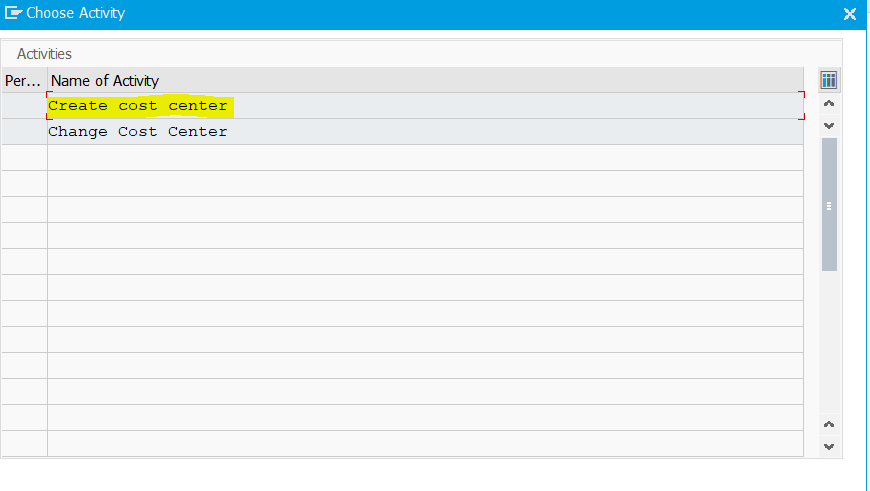
Double click the highlighted as illustrated in the image.
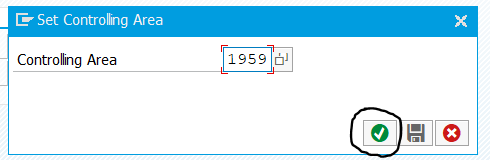
Give our company code and click the Continue button.
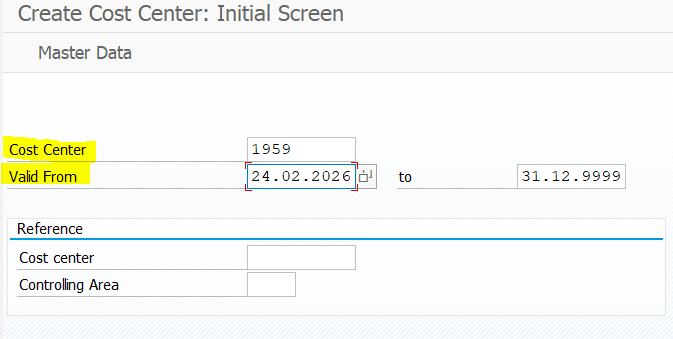
Give the new name as 1959 as illustrated, Valid From Date and To Date as shown in the figure and press Enter.
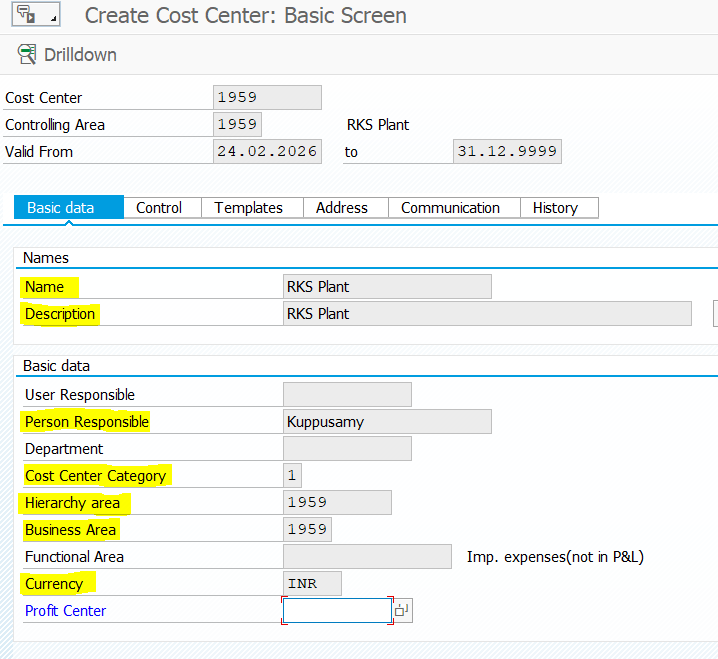
Fill the required fields as shown in the figure and press Enter. System will give warning and ignore that warning and again press Enter and then click the Save button.
The Cost Center 1959 – RKS Plant has now been created.
“To learn more about this topic, please visit the official website“