
Define Company – OX15
spro-sap reference img-sap customizing implementation guide-enterprise structure-definition-financial accounting-define company-OX15
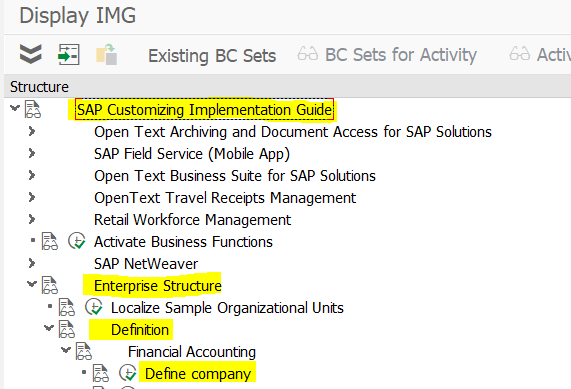
Select the Define Company and the interface will be
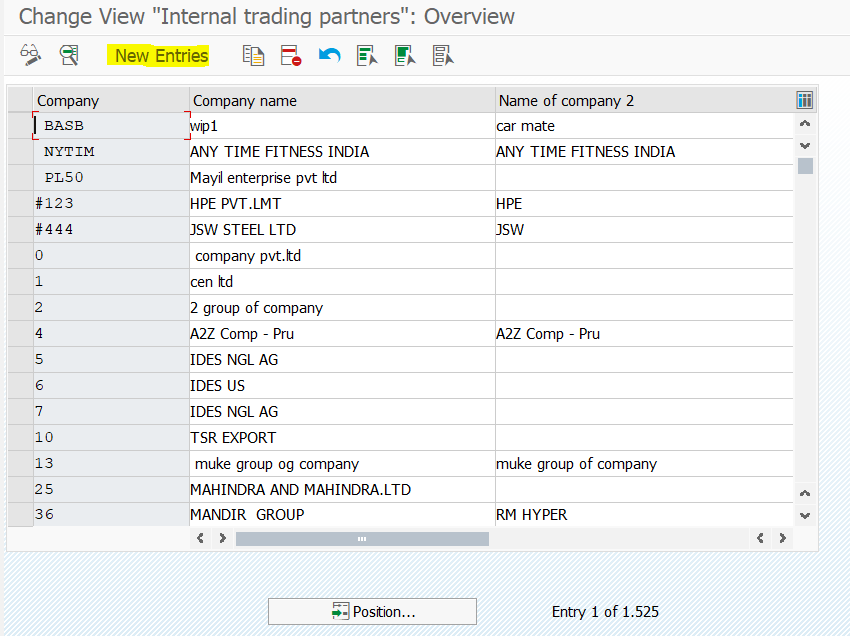
Choose the New Entries.
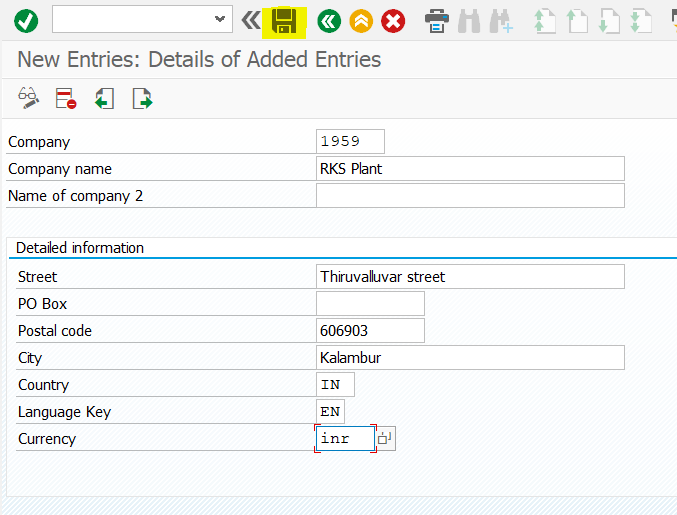
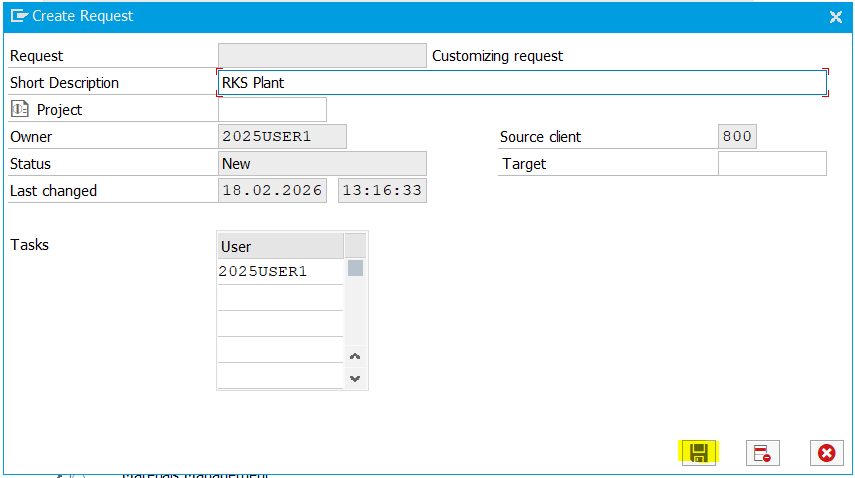
Input your plant name in the short description field and press the Save Button, and the interface will be.
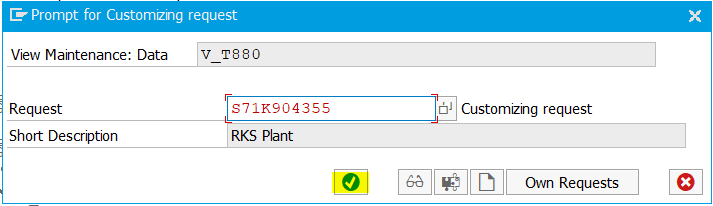
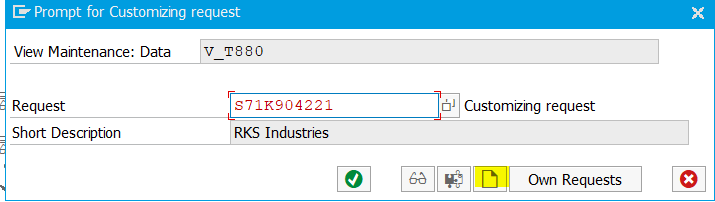
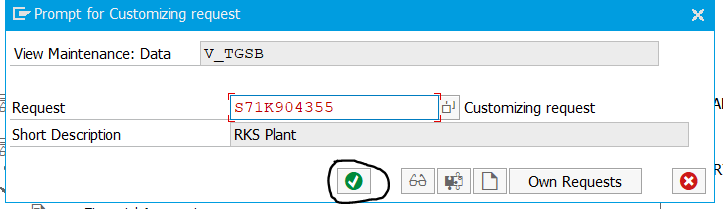
The above image shows customizing request in SAP. This is a critical step whenever you make changes in the SAP.
Will explain this one by one.
View maintenance:
This shows the exact database table or “view” that you are working on right now. In this instance, it pertains to Plant configurations.
Request S71K904355:
This is the number for the Transport Request (TR).
You can think of it as a “digital container” or a “package.”
Every time you make a configuration change, it gets “packed” into this ID so it can be sent (transported) to other servers like Quality (Testing) or Production (Live).
Short Description RKS Plant:
This label was made by the user to show what’s in the TR. In this case, it means that the changes are for the “RKS Plant.” It makes it easier for other consultants or Basis teams to grasp the reason for this request without having to check the technical logs.
The Green Tick Continue :
By clicking on the icon you circled, you save your changes and officially connect them to that particular Transport Request ID.
New users can sometimes feel puzzled when this screen appears. It’s important to clarify that they need to either choose an existing request or click on the “Create Request” icon (the white paper icon) to ensure their work is saved.
Now click the Continue button.
The Company 1959 – RKS Plant has now been established.
Define Company Code – OX02
It is an organizational component of financial accounting, positioned one level below the company, and it indicates the legal framework within which the company presents its income statements and balance sheets.
It is defined as four-digit alphanumeric code.
spro-sap reference img-sap customizing implementation guide-enterprise structure-definition-financial accounting-edit, copy, delete, check company code-OX02.
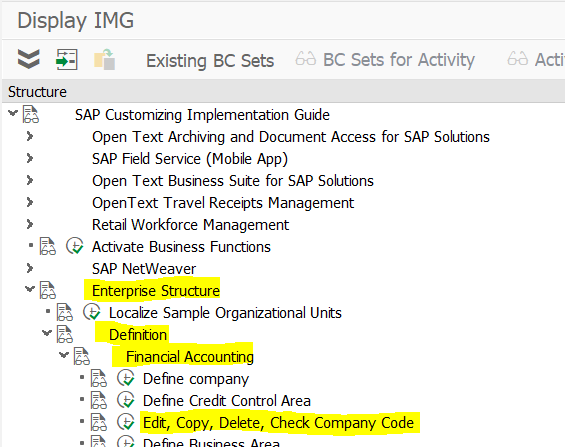
Select the Edit, Copy, Delete, Check company code, and the interface will appear as.
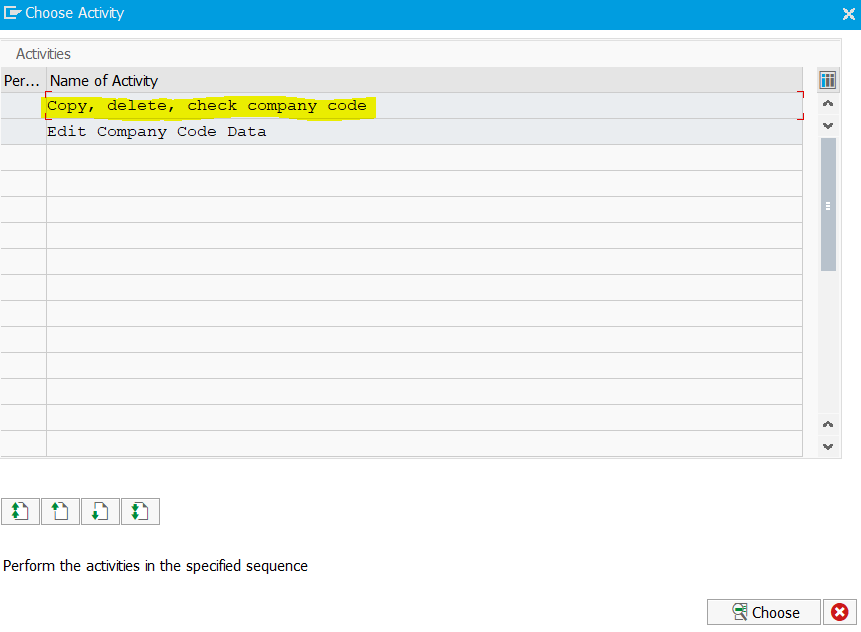
Double click on Copy, delete, check company code and the next screen as.
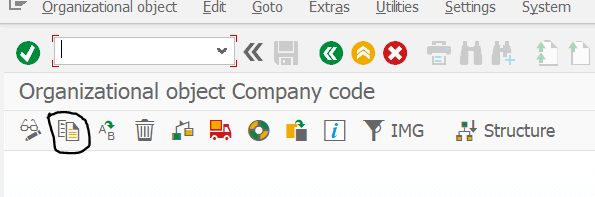
Click Copy organizational object and the next screen.
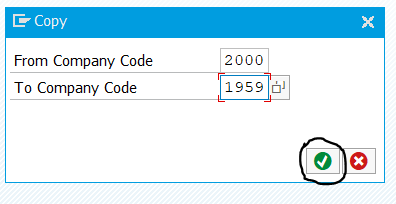
Select a SAP predefined standard company code 2000 as source and copy that company code to your new company code. I chose 1959 as company code number.
Then, Click Continue button.
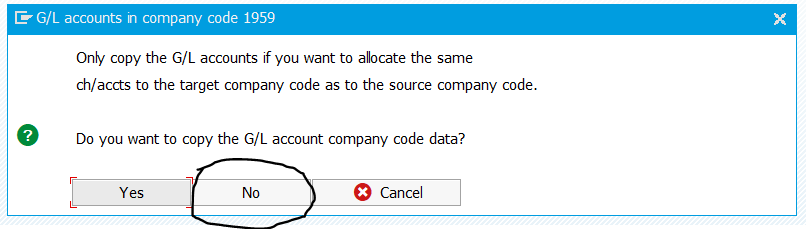
Select the option NO, because we need to create our own G/L account and will see in later.
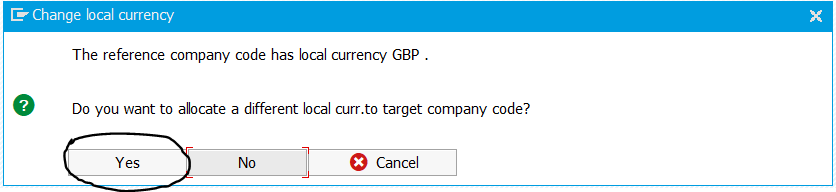
The reference company code currency is different with our currency, We need to allocate our company code currency, So please click Yes.
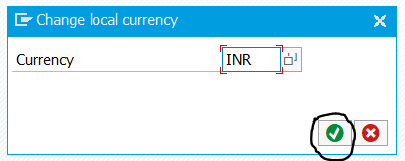
Choose our company code currency as INR and then press continue.
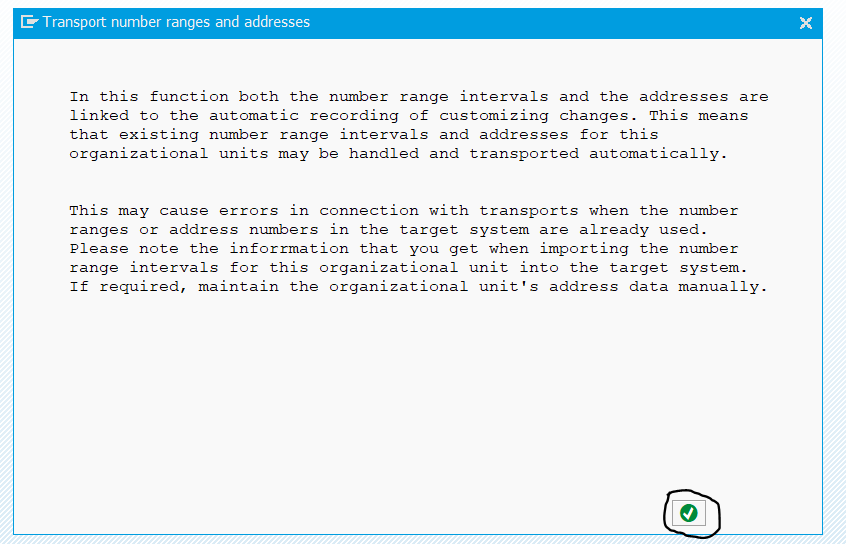
Press Continue again.
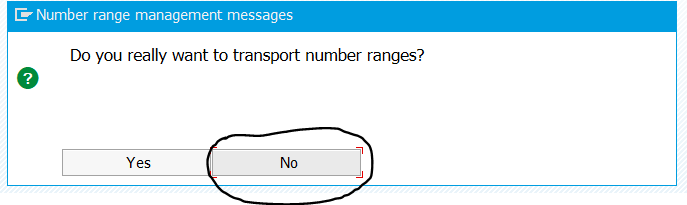
Select the NO option.
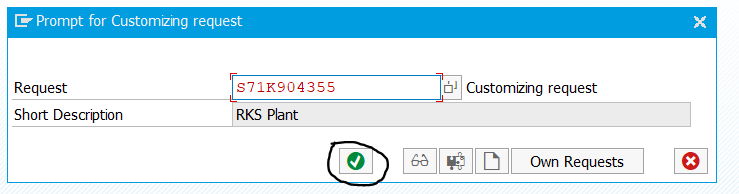
Press the Continue button.
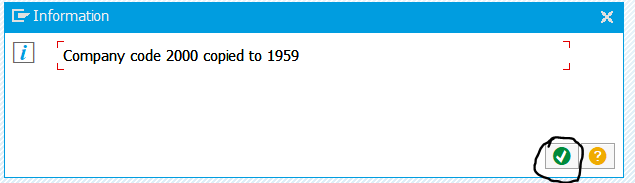
Now, the company code 2000 copied to 1959 successfully.
Press Continue.
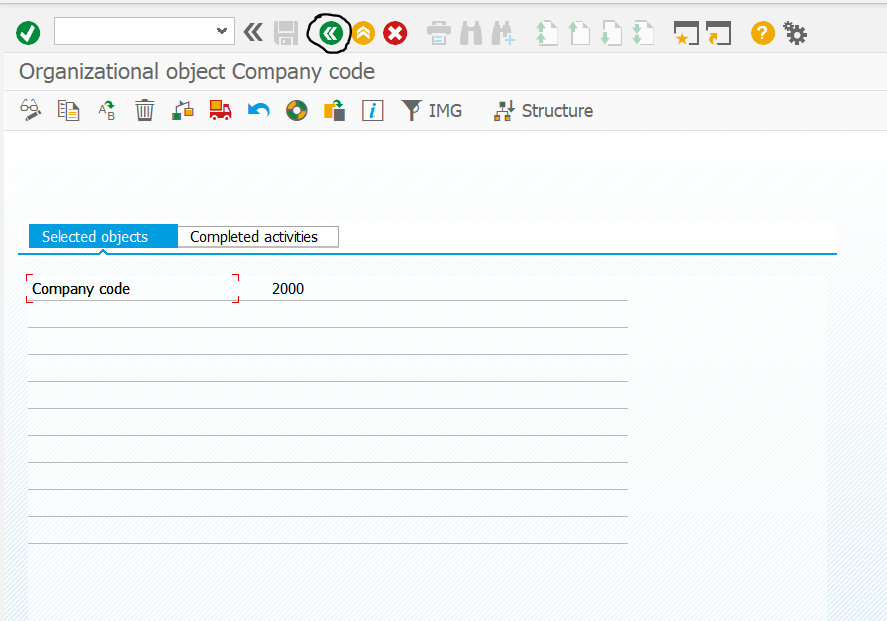
Click Back Button as illustrated.
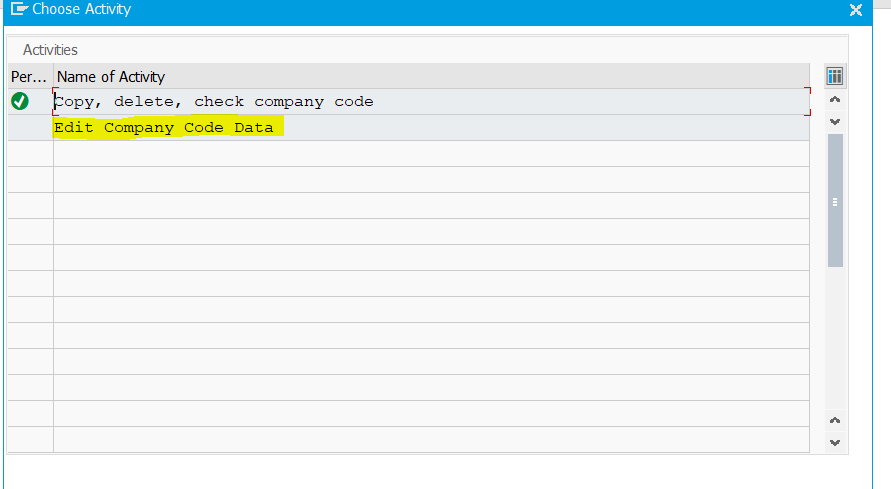
Double click on Edit Company Code Data.
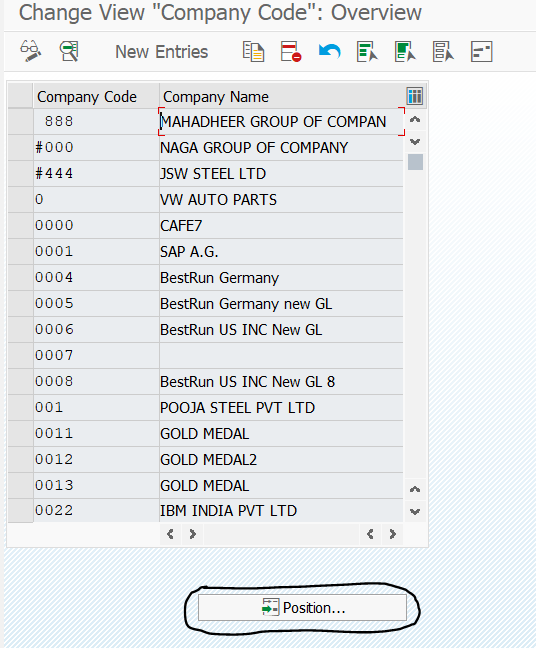
Click on the Position.
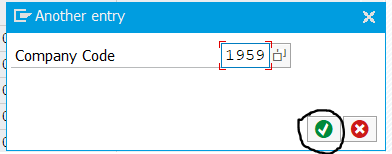
Give our company code and press Continue.
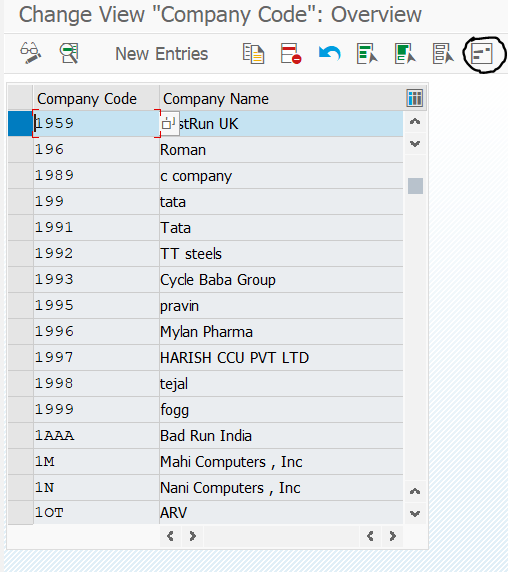
Select our company code field 1959 and select the Address Icon.
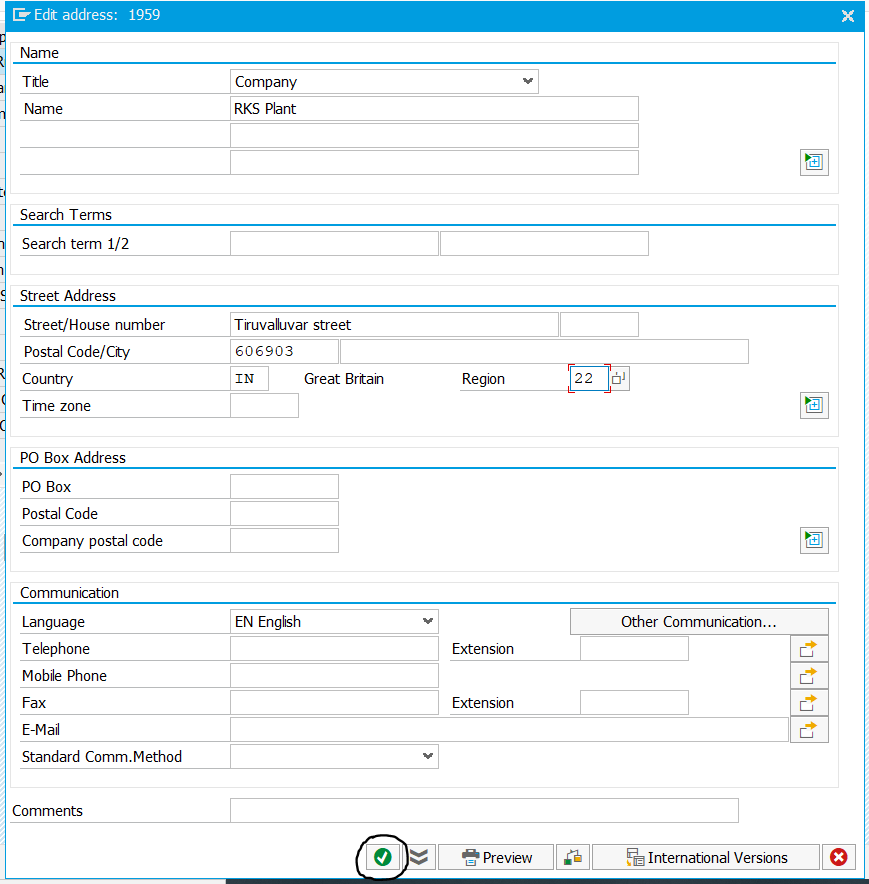
Complete the required fields as illustrated in the image, and then click the Continue button and then click the Save button on the next screen.
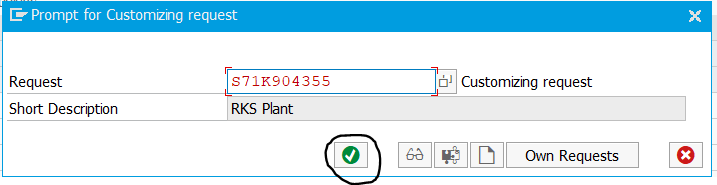
Press the Continue button to save the changes we have made.
The Company code 1959 – RKS Plant has now been established.
Define Credit Control Area – OB45
It is the organizational unit responsible for monitoring the customer credit limits across one or several company codes.
It defines a particular credit limit for each customer within a credit control area. The system the check the limits during the sale process.
It contains one or several company codes. But it is not feasible to assign a company code to more than one CCA.
It is defined as four-digit alphanumeric code.
spro-sap reference img-sap customizing implementation guide-enterprise structure-definition-financial accounting-define credit control area-OB45
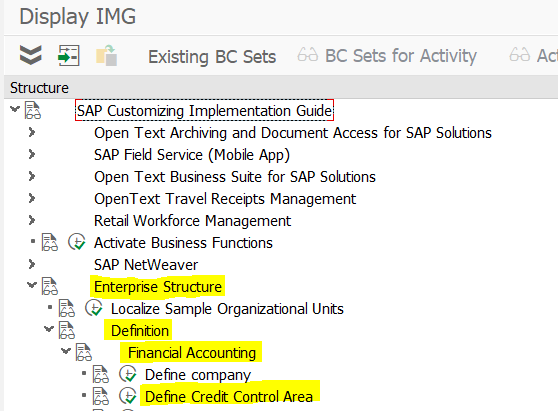
Select Define CCA, and the interface will appear as,
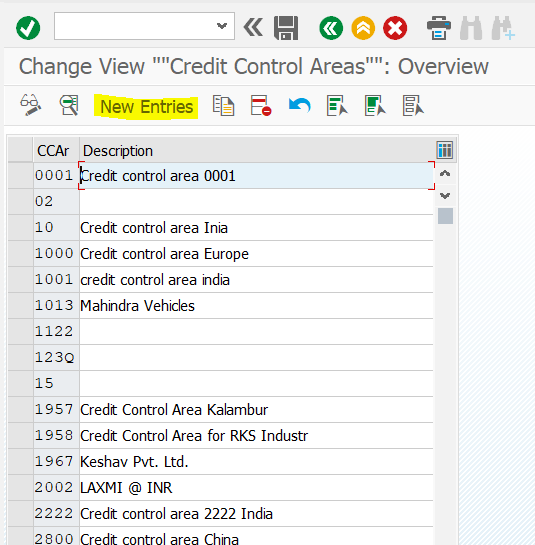
Choose the New Entries,
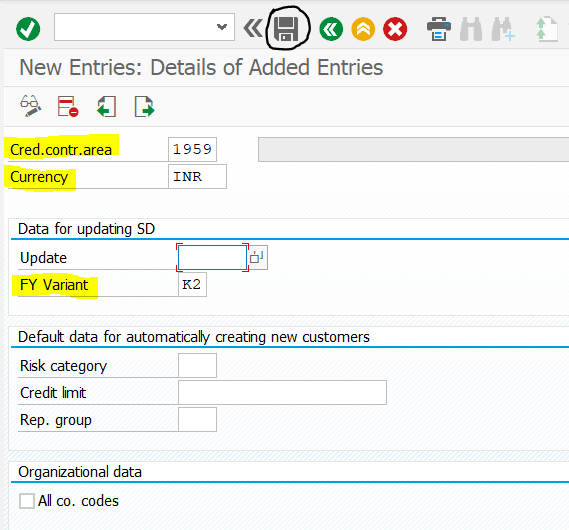
Give the CCA, Currency and FY Variant as illustrated in the image and then click the Save button.
The fiscal year variant needs to be changed once it is created, and this will be done later.
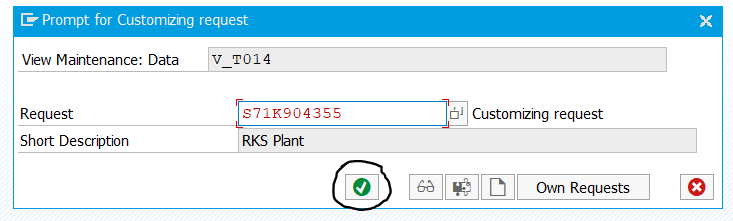
Click the Save button, and then go back.
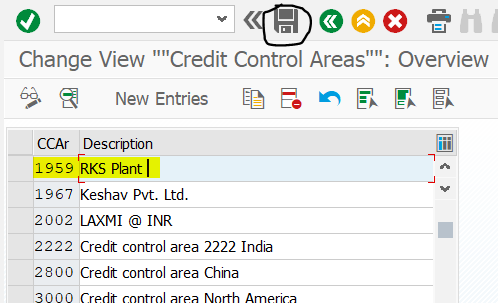
Now select our CCA and give the description
The Credit control area 1959 – RKS Plant has now been created.
Define Business Area – OX03
It is an organizational unit and its functions are to perform financial operations within a company.
A single BA can be used by multiple company codes and a single company code can have multiple BAs.
If an industry or company want to see their profit and loss of different nature of business with different locations separately, then BA is used.
For an example,
This RKS plant having different type of business like,
- RKS forging
- RKS Tiles
- RKS PUC pipe
- RKS Autoparts
We will create BA for each and every type of business. By this we will easily check or monitor not only overall profit and loss and also can monitor individual profit and loss.
It is defined as four-digit alphanumeric code.
spro-sap reference img-sap customizing implementation guide-enterprise structure-definition-financial accounting-define business area-OX03
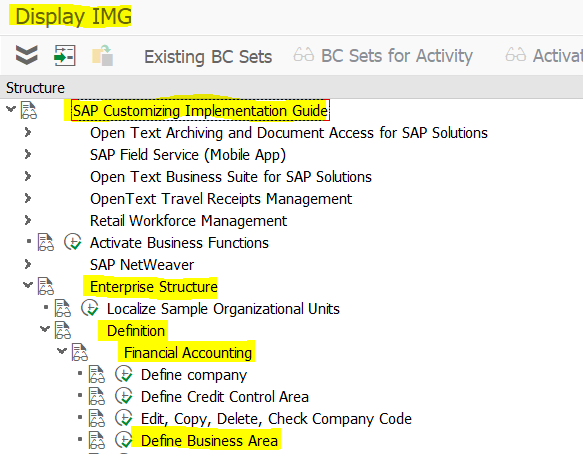
Select Define Business Area, and the interface will appear as
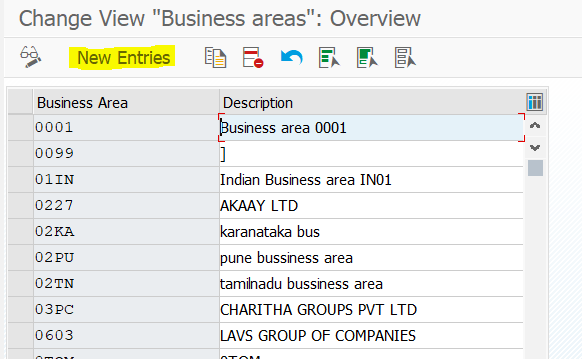
Choose the New Entries.
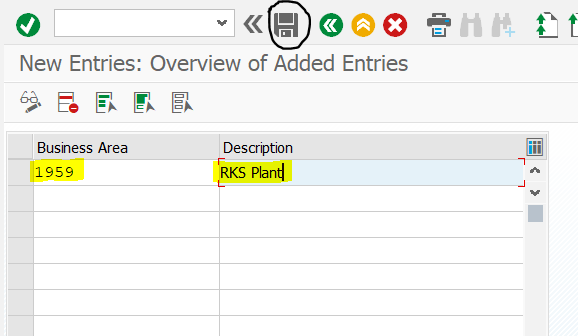
Create a new BA and give the Description, and then click the Save button.
Click the Continue button, and now the changes have been saved and go back.
The Business Area 1959 – RKS Plant has now been created.
“To Learn more about SAP, visit official website“
Really good that explained step by step.
Thank you